Sunday, 28 July 2019

iOS 13 iTunes Sync – Is Apple Really Killing iTunes


iOS 13 iTunes Sync – Is Apple Really Killing iTunes

Since the invention of iTunes (Apple’s most used software) in 2001, it revolutionized the media industry. But the time to end this jukebox software has come with the introduction of macOS 10.15 Catalina. Hence, iTunes will no longer be supported by new upgrades on Apple desktops and laptop computer operating systems.


What Was Wrong with iTunes?

iTunes was created to become the interface to Apple’s Digital Hub strategy. Steve Jobs unveiled iTunes 2001 as a hub that would connect and manage everyone’s digital lives, which was meant to link together digital cameras, music players, and organizers.

With this philosophy in mind, Apple Inc. added video functionalities to iTunes features in May 2005, Podcasts on June 2005, eBooks in January 2010, etc. In WWDC 2019, Apple even joking announced that they intend to add calendar, web browsing, and email functionalities to iTunes.

All these features have made iTunes become a bloated mess as it tries to become a piece of software that can contain all the entertainment every Apple device user could ever want.
Why Replace iTunes Now?

As time went on and more features found their way into iTunes, the philosophy behind the invention of iTunes overladen the software, and it became obvious that there is a need for a change. More so, users complain of incessant update every time they open iTunes.

Now, Apple wants to create apps that would identify and function well on the Apple Music and Apple TV+ services. The iTunes brand will not be fit for these services due to usability issues, so, it’s time to split iTunes into different apps.
What are iTunes Main Replacements?

If you think that with iOS 13 no iTunes, then you are right but wrong too. You are right because iTunes will no longer be available as a single app that is supported by Apple, but iTunes functionalities and features still live in the following applications:


Apple Music


Apple Music is the app that would carry the main features of iTunes. it’s expected to encourage users to continue with Apple Music subscriptions while also letting them access their entire music library. You will also access the iTunes Music Store from this app.Apple TV+


The Apple TV will carry all the video functionalities of iTunes such as buying and renting full 4K HDR videos. Other numerous exciting features would come with this app such as pausing a video in iPhone and switching to iPod screen to continue the video from where you stopped.Podcasts


The Podcasts will still have the features and functionalities it has on the iOS devices while still supporting over 700,000 shows. You will be notified of new episodes immediately they are released.Finder

Syncing your iOS device on Mac will now be done through the Finder app. iOS 13 iTunes sync, backup, restore, and an update will be the primary functions of the Finder app.

Sponsor ads:

Gihosoft RePicvid Free Photo Recovery Software provides a free photo recovery software for windows to help users recover the deleted or lost photo for free.

If you lost data after you updated to a new iPhone, you can always use Gihosoft iPhone Data Recovery to get the data back from the old iPhone or backup.You may also like: iphonerecovery.com

Monday, 8 April 2019

powerd Sandbox Escape exploit released for iOS 12.1.4


powend exploit achieves sandbox escape and privilege escalation on iOS 12.1.4 and older firmware. Here’s all you need to know about it.

Table of Contents


How powend exploit works


Can powend lead to a jailbreak?
HOW POWEND EXPLOIT WORKS

powend is an iOS exploit based on a powerd vulnerability that achieves sandbox escape and privilege escalation on iOS 12.1.4 and below.

Hacker Mohamed Ghannam of SSD Secure Disclosure first discovered this vulnerability at the Hack2Win Extreme competition. The hacker went on to win the iOS Privilege Escalation category at the TyphoonCon hacking conference 2018.

The security vulnerability (CVE-2019-8549), which was patched in iOS 12.2, lies in the “powerd” daemon in the iOS mobile operating system.


Hackers can utilize it to gain arbitrary address reads with an unlimited amount of memory and arbitrary address deallocation with arbitrary size, which ultimately leads to Sandbox Escape.

And, what’s more, it doesn’t just provide Sandbox Escape, it also grants you root user privileges, which can be used to call kernel APIs that are reserved for processes running as root.

This will increase the attack surface available to the hackers and leave the iOS kernel even more vulnerable.
CAN POWEND LEAD TO A JAILBREAK?

Sandbox escape, while an important component of a jailbreak, doesn’t give you root access to the filesystem or exploit the kernel.

Further, it has a major compatibility issue in that it only supports devices without the A12 Bionic processor.

Therefore, iPhone XS (Max) and iPhone XR devices, which still don’t have a full jailbreak, will remain invulnerable to this exploit.


All things considered, it can allow a jailbreak developer to update or develop from scratch a new Houdini-style semi-jailbreak application for iOS 12.0-12.1.4.

Applications like FilzaEscaped and GeoFilza may also receive an update somewhere down the line provided more research is done on this exploit.

Sponsor ads:

Gihosoft Free iPhone Data Recovery:https://www.gihosoft.com/iphone-data-recovery-free.html

Gihosoft iPhone Data Recovery Free

Free iPhone Data Recovery Software for Windows/Mac

Recover up to 12+ types of files, including contacts, SMS, photos, WhatsApp, Viber, notes, etc.

Restore lost data from iOS devices directly or from iTunes and iCloud backup

Recover iPhone data lost due to iOS upgrade/jailbreak, accidental deletion, device lost or broken

Support all the latest iPhone, iPad and iPod Touch

Both Free and Pro version.

If you lost data after you updated to a new iPhone, you can always use Gihosoft iPhone Data Recovery to get the data back from the old iPhone or backup.You may also like: iphonerecovery.com

If you use android phones, please choose Gihosoft Android Data Recovery.

With Gihosoft Android Data Recovery, no longer afraid of data loss!

Must read:Youtube video downloader for pc

Gihosoft RePicvid Free Photo Recovery Software provides a free photo recovery software for windows to help users recover the deleted or lost photo for free.

Jihosoft Android Data Recovery: the best Android Data Recovery software for Windows and Mac to recover deleted contacts, messages, photos, videos, WhatsApp and etc from Android devices.Tips:How to transfer messages from iPhone to iPhone

Jihosoft File Recovery:Recover deleted, Lost, formatted, or corrupted files from PC, flash drive and memory card easily & safely

Also Read:Update Android

Also Read:Top 8 Best Alternative Websites to TamilGun in 2019

Also Read:Free Download FRP Bypass APK for Android 2019

Also Read:Best 10 Movie4k Alternative Websites for Movie Streaming 2019

Also Read:Top 32 Best Proxy and Mirror Sites to Unblock Fmovies 2019

Also Read:Best Torrent Search Engine Sites to Find Your Favorite Torrents 2019

Also Read:5 Best Sites Serving as Alternatives to TheWatchSeries Online 2019

Also Read:Top 6 Best Alternative Websites to Torlock For You 2019

Also Read:Download Latest Samsung USB Drivers for Mobile Phones on Windows

Also Read:take a screenshot on any Android phone

Also Read:Convert Video to GIF Free with Top 5 Free Video to GIF Converters

Also Read:Add Timestamp to Photos on Windows/Mac/Android/iPhone

Thursday, 4 April 2019

How to Backup Text for WhatsApp 2019


Backup Text for WhatsApp with iTunes

Just as iTunes play-in your favorite line of music it is also equipped with the technology to backup texts for your WhatsApp too. Make use of the following guide to execute the backup.


First and foremost, load iTunes on your pre synced PC or Mac computer. In the meantime, connect your iPhone with device by using a USB cable.


Now click on the iPhone icon available in iTunes and proceed with 'Summary'.


Lastly, click on the 'Backup Now' option and the entire range of files available in your iPhone will be backed up.


Backup Text for WhatsApp with iCloud

Apple's iCloud renders to give 100% assurance to its users for maintaining the backup of any iDevice. Similarly, one can backup text for WhatsApp with much ease. Just follow down the list of steps!


Get hold of your iPhone and locate 'Settings' from home screen or app drawer. Press on [your name] and click on 'iCloud' right after you have slide next to 'iCloud Drive' for switching it on.


From the available set of apps, slide in 'WhatsApp' to turn on.


Now, go to iCloud settings and select 'iCloud backup' option from the main menu and turn 'iCloud backup' option (if it's not on).


At last, press the 'Back Up Now'.


How to Backup Text for WhatsApp for Android

If you have an Android device, you can make use of Google Drive Way for backing up the texts available for WhatsApp for your Android phone. Here is how you can do it.


1. Firstly, launch 'WhatsApp' and go to the 'menu icon' i.e. three vertical dots visible on the upper right section of the screen.


2. From here-on click on 'Settings' > 'Chats'.


3. Click on the 'Chat Backup' option afterwards.


4. Next up, click on 'Google Drive Settings' to select the duration of frequency you are most comfortable with.


5. Click on 'Account' and ensure to select the account with which your backup should be linked to.


6. Select 'Allow' and opt for 'Back up over' option by –


For Wi-Fi backup, Click on 'Circle' opposite to 'Wi-Fi'.


For Cellular network, select 'Circle' next to 'WiFi' or 'cellular' network.


7. In case of adding videos, click on box near to 'include videos'.


8. Lastly, select 'Back Up' to back up your phone right away.Sponsor ads:


Gihosoft Free iPhone Data Recovery:https://www.gihosoft.com/iphone-data-recovery-free.html


Gihosoft iPhone Data Recovery Free


Free iPhone Data Recovery Software for Windows/Mac


Recover up to 12+ types of files, including contacts, SMS, photos, WhatsApp, Viber, notes, etc.


Restore lost data from iOS devices directly or from iTunes and iCloud backup


Recover iPhone data lost due to iOS upgrade/jailbreak, accidental deletion, device lost or broken


Support all the latest iPhone, iPad and iPod Touch


Both Free and Pro version.


If you lost data after you updated to a new iPhone, you can always use Gihosoft iPhone Data Recovery to get the data back from the old iPhone or backup.You may also like: iphonerecovery.com


If you use android phones, please choose Gihosoft Android Data Recovery.


With Gihosoft Android Data Recovery, no longer afraid of data loss!


Must read:Youtube video downloader for pc


Gihosoft RePicvid Free Photo Recovery Software provides a free photo recovery software for windows to help users recover the deleted or lost photo for free.


Jihosoft Android Data Recovery: the best Android Data Recovery software for Windows and Mac to recover deleted contacts, messages, photos, videos, WhatsApp and etc from Android devices.Tips:How to transfer messages from iPhone to iPhone


Jihosoft File Recovery:Recover deleted, Lost, formatted, or corrupted files from PC, flash drive and memory card easily & safely


Also Read:Update Android


Also Read:Top 8 Best Alternative Websites to TamilGun in 2019


Also Read:Free Download FRP Bypass APK for Android 2019


Also Read:Best 10 Movie4k Alternative Websites for Movie Streaming 2019


Also Read:Top 32 Best Proxy and Mirror Sites to Unblock Fmovies 2019


Also Read:Best Torrent Search Engine Sites to Find Your Favorite Torrents 2019


Also Read:5 Best Sites Serving as Alternatives to TheWatchSeries Online 2019


Also Read:Top 6 Best Alternative Websites to Torlock For You 2019


Also Read:Download Latest Samsung USB Drivers for Mobile Phones on Windows


Also Read:take a screenshot on any Android phone


Also Read:Convert Video to GIF Free with Top 5 Free Video to GIF Converters


Also Read:Add Timestamp to Photos on Windows/Mac/Android/iPhone


Also Read:iPhone Manager


Wednesday, 3 April 2019

Restore iPhone in Recovery Mode with iTunes (Data Loss) 2019


Restore iPhone in Recovery Mode with iTunes (Data Loss)

Apart from using a third-party program to bypass the limitations of restoring iPhone stuck in recovery mode with iTunes, you can actually choose to restore your iPhone in recovery mode with iTunes. If you are prepared to lose the data on the phone, this option is probably for you.

First off, make sure your version of iTunes is the updated one, and by following the steps below, you can complete the process.


Connect your USB cable to your computer.


Press the power button and hold until the power-off device slide interface shows up.


Slide to power off your iPhone.


Press and hold the iPhone’s home button and then connect to the USB cable that you already connected to your computer. You will see the Apple Logo, and after some seconds, you will see the recovery logo.


Release the home button once your iPhone has entered recovery mode.


Go back to your iTunes where you will find a dialog box informing you that your iPhone is in recovery mode.


Click on “Restore” right from the dialog box, and your iPhone will be restored.


Now, the limitation of restoring iPhone in recovery mode with iTunes is that you may lose all the data on the iPhone. If you do not have a recently saved backup file of your iPhone, you will lose your data, but if you have a saved backup, you can easily restore your iPhone.
Conclusion

Restoring iPhone stuck in recovery mode can be really straightforward if you know exactly what you want. We have addressed how to restore iPhone in recovery mode with iTunes and how to restore iPhone without iTunes in recovery mode. We have also checked out the one with a limitation, and we have introduced a reliable program that you can use without losing data. iMyFone Fixppo really does make life easy for iOS users, and it is the most reliable way to restore iPhone in recovery without iTunes. Download the software today and fix any issues you may be facing with your iPhone or any other iOS devices.

Sponsor ads:

Gihosoft Free iPhone Data Recovery:https://www.gihosoft.com/iphone-data-recovery-free.html

Gihosoft iPhone Data Recovery Free

Free iPhone Data Recovery Software for Windows/Mac

Recover up to 12+ types of files, including contacts, SMS, photos, WhatsApp, Viber, notes, etc.

Restore lost data from iOS devices directly or from iTunes and iCloud backup

Recover iPhone data lost due to iOS upgrade/jailbreak, accidental deletion, device lost or broken

Support all the latest iPhone, iPad and iPod Touch

Both Free and Pro version.

If you lost data after you updated to a new iPhone, you can always use Gihosoft iPhone Data Recovery to get the data back from the old iPhone or backup.You may also like: iphonerecovery.com

If you use android phones, please choose Gihosoft Android Data Recovery.

With Gihosoft Android Data Recovery, no longer afraid of data loss!

Must read:Youtube video downloader for pc

Gihosoft RePicvid Free Photo Recovery Software provides a free photo recovery software for windows to help users recover the deleted or lost photo for free.

Jihosoft Android Data Recovery: the best Android Data Recovery software for Windows and Mac to recover deleted contacts, messages, photos, videos, WhatsApp and etc from Android devices.Tips:How to transfer messages from iPhone to iPhone

Jihosoft File Recovery:Recover deleted, Lost, formatted, or corrupted files from PC, flash drive and memory card easily & safely

Also Read:Update Android

Also Read:Top 8 Best Alternative Websites to TamilGun in 2019

Also Read:Free Download FRP Bypass APK for Android 2019

Also Read:Best 10 Movie4k Alternative Websites for Movie Streaming 2019

Also Read:Top 32 Best Proxy and Mirror Sites to Unblock Fmovies 2019

Also Read:Best Torrent Search Engine Sites to Find Your Favorite Torrents 2019

Also Read:5 Best Sites Serving as Alternatives to TheWatchSeries Online 2019

Also Read:Top 6 Best Alternative Websites to Torlock For You 2019

Also Read:Download Latest Samsung USB Drivers for Mobile Phones on Windows

Also Read:take a screenshot on any Android phone

Also Read:Convert Video to GIF Free with Top 5 Free Video to GIF Converters

Also Read:Add Timestamp to Photos on Windows/Mac/Android/iPhone

Thursday, 28 February 2019

iPhone 8 Won’t Go to Sleep, How to Fix That Issue?


1. Confirm You've Set Up an Auto-Lock Time

First on our list is to confirm that you've actually got an auto-lock time enabled.


Go into settings, then general and scroll down until you find "Auto-lock".


Select a time – anything will work, as long as you don't select "Never".


This should then ensure your phone locks when the timer reaches its limit.


2. Force Restart Your iPhone 8

The next strategy you can try is to force restart your phone. It seems that this might not be a method and trust us, force restart can solve lots of common issues on device, including iPhone 8 not going to sleep.


Press and instantaneously release the 'Volume Up' button.


Next, press and instantaneously release the 'Volume Down' button.


After you've done that, hold down the 'Side Button' until the Apple logo appears.


That will restart your iPhone 8. But, you can also enter settings, scroll down to the bottom and hit "Shut Down".


3. Set the Auto-Lock Time to 30 Seconds

Another option is to change the auto-lock time. Lots of iPhone users prove that this method works in Apple Community and you can try it on your iPhone 8.


Restart your iPhone 8 and then go into Settings > Display & Brightness > Auto-Lock.


Once you're in that specific tab, you need to set the timer to 30 Seconds.


Wait 30 seconds to see if your iPhone 8 locks.


If it does, head back into Settings, and re-test it with the timer at 1 Minute or the time you need to set up.


4. Turn Off AssistiveTouch

One method that has been proven to be effective by many users is disabling AssistiveTouch.


Jump into the Settings app and enter the "General" tab.


Find "Accessibility" and click on it.
Also Read:How to Remove RAR Password Online in Windows without Software 2019Also Read:Top 15 Best Sites Like FMovies for You to Download Movies and TV Shows 2019


Then you want to scroll down until you come across AssistiveTouch.


Make sure the toggle button is set to off – should be grey rather than green.


5. Reset All Settings on iPhone 8

This approach is more geared towards that don't find a solution with one of the methods above.


Access the Settings app and dive into the "General" section.


Towards the bottom of the screen you should see "Reset".


When you tap on "Reset", you'll be presented with a variety of options. Hit "Reset All Settings".Also Read:How to Fix the “Black Screen of Death” on iPhone XS/X/8/7Also Read:How to Recover Files Deleted by Virus Attack


That will then refresh your phone and hopefully solve the issue that iPhone won't go to sleep.


6. Update Your iPhone 8 to the Latest iOS Version

There's a common assumption that Apple leave bugs in outdated versions of their iOS software to encourage users to upgrade to the latest version. Whether that's true or not, it definitely makes sense to have the latest operating software.


Go to Settings > General > Software Update.


Once you're in there, it will let you know whether you have an available update.


If you do, tap "Download and Update".


When it finishes the update, test to see whether iPhone 8 not going to sleep has been resolved.


7. Fix iOS Issues to Solve iPhone 8 Won't Go to Sleep
Also Read:Windows Media Player Won’t Play AVI Troubleshooting
Also Read:Top 10 Best Football Live Streaming Sites for You to Watch Soccer Live on TV 2019
Also Read:10 Best Party Planner Apps for your iPhone and iPad in 2019
Also Read:Best Inventory Management Apps for iPhone and iPad in 2019Also Read:How to Permanently Delete Photos and Videos from Samsung Mobile Phone

Sponsor ads:

Gihosoft Free iPhone Data Recovery:https://www.gihosoft.com/iphone-data-recovery-free.html

Gihosoft iPhone Data Recovery Free

Free iPhone Data Recovery Software for Windows/Mac

Recover up to 12+ types of files, including contacts, SMS, photos, WhatsApp, Viber, notes, etc.

Restore lost data from iOS devices directly or from iTunes and iCloud backup

Recover iPhone data lost due to iOS upgrade/jailbreak, accidental deletion, device lost or broken

Support all the latest iPhone, iPad and iPod Touch

Both Free and Pro version.

If you lost data after you updated to a new iPhone, you can always use Gihosoft iPhone Data Recovery to get the data back from the old iPhone or backup.You may also like: iphonerecovery.com

If you use android phones, please choose Gihosoft Android Data Recovery.

With Gihosoft Android Data Recovery, no longer afraid of data loss!

Must read:Youtube video downloader for pc

Gihosoft RePicvid Free Photo Recovery Software provides a free photo recovery software for windows to help users recover the deleted or lost photo for free.

Jihosoft Android Data Recovery: the best Android Data Recovery software for Windows and Mac to recover deleted contacts, messages, photos, videos, WhatsApp and etc from Android devices.Tips:How to transfer messages from iPhone to iPhone


jihosoft Free iPhone Data Recovery

Friday, 22 February 2019

iOS 12: Automatic App Deletion for Space-saving


1. Free Way to Clear All App Caches from iOS 12 Easily

The first and most efficient way to clean your iPhone is using iMyFone iOS Cleaner Win/iMyFone iOS Cleaner Mac’s free function to clear all your junk files of all apps. It has many features that allow you to get rid of data that you don’t need, including a 1-click function for deleting junk data, like unused caches and other temp files.


iMyFone is regarded as the best free cleaner for iPhone -- MacWorld, cultofmac, makeuseof, etc.


If you want to keep your phone storage from filling up, this is definitely a great application to try. It even comes with a free trial so you can try it before you buy it.


Step 1: After installing iMyFone iOS Cleaner on computer, open it and connect your iOS 12 device to computer.

Step 2: Click on the “Junk Files” tab from the home interface. It will show you how much junk files can be cleared from your iPhone.

Step 3: Tap on “Clean” to start the process.
2. Stop Storing Text Messages on iOS 12 Forever

Generally, iPhone will store all the text messages you sent or received on your iPhone forever. This will easily eat up much space, especially there are large messages attachments. So users may even find that “Messages” occupies the most space on device, like 4.3GB, but they have no idea to clear them once.

So you can change the settings by going to “Settings > Messages > Keep Messages” and select to store texts for 30 days or 1 Year. By this, iOS can automatically remove messages sent or received older than 30 days or 1 Year.


3. Periodically Clear Your Browser Cache on iOS 12

One of the biggest offenders when it comes to storing junk data that fills your iPhone storage is your browser cache, especially when you often use it to surfing online. Luckily, iOS 12 provides you the built-in cache cleaning to remove all browsing history.

Just go to “Settings > Safari > Clear History and Website Data”. And everything stored in Safari will be thoroughly removed.Sponsor ads:Schedule Text Messages on iPhoneMust Read:If you lost data after you updated to a new iPhone, you can always use Gihosoft iPhone Data Recovery to get the data back from the old iPhone or backup.

Gihosoft Free iPhone Data Recovery:iphonerecovery.com

If you use android phones, please choose Gihosoft Android Data Recovery


4. Store Photos in iCloud

Each iPhone photo ia about 3-6MB at average which easily eat up huge space on iPhone. However, iCloud provides a great function to have original-size photos stored in iCloud and download the compressed photos on iPhone.

You can go to “Settings > Photos & Camera > iCloud Photo Library” and select “Optimize iPhone Storage”.


Limits:


iCloud provides only 5GB free space. If iCloud space is not enough, you need to pay more.


You cannot delete photos from iPhone, as deleted photos will be synced from iCloud again when connecting to Wi-Fi.

Or you can also use iMyFone iOS Cleaner to compress iPhone photos to save 75% photo space without losing any visible quality.
5. Reset iPhone & Restore Backups

There is another way to completely remove invisible files from iPhone by factory resetting iPhone and restore backups to iPhone, which would save much space as well.


Back up iPhone data to iTunes.


After backup, click “Restore iPhone” on iTunes or go to “Settings > General > Reset > Erase All Content and Settings” on iPhone to bring your iPhone to factory default settings.


Then go to iTunes again and tap on “Restore Backup” to continue.

This will reclaim iPhone space as iTunes backup does not include everything, like downloaded files in apps. Please also note that, Backup and Restore Backups will take a long time to finish.

Wednesday, 20 February 2019

Manually Transfer All Songs from iPod to USB Stick (Win) 2019


2019 Manually Transfer All Songs from iPod to USB Stick (Win)

This way is only available for iPod, but not iPhone and iPad.

If you want, you can do things the old-fashioned way and manually transfer your music from iPod to your flash drive. This only works if you want to transfer all of your music, though. Here is how you do it:


Connect your iPod to computer. Your device should be displayed under “My Computer” windows.Sponsor ads:


send anonymous text message from computer for free


Must Read:If you lost data after you updated to a new iPhone, you can always use Gihosoft iPhone Data Recovery to get the data back from the old iPhone or backup.


Gihosoft Free iPhone Data Recovery:iphonerecovery.com


If you use android phones, please choose Gihosoft Android Data Recovery


Connect your USB flash drive to computer USB port.


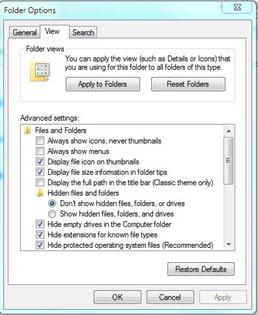
On windows explorer, select “Tools” under tools and then “Folder Options”.


Select “View” and then check “Display hidden files and folders”.


From “My Computer” windows, launch iPod and you can see the folder called “iPod_Control”.


Copy and paste the folder “iPod_Control” to your USB flash drive.

However, it can only help you to transfer all music from iPod to flash drive. There is no way to just transfer selected music.


So if you’re thinking of transferring your music from iPhone to flash drive, definitely consider using iMyFone iPhone Transfer to do it.Sponsor ads:

Gihosoft Free iPhone Data Recovery:https://www.gihosoft.com/iphone-data-recovery-free.html

Gihosoft iPhone Data Recovery Free

Free iPhone Data Recovery Software for Windows/Mac

Recover up to 12+ types of files, including contacts, SMS, photos, WhatsApp, Viber, notes, etc.

Restore lost data from iOS devices directly or from iTunes and iCloud backup

Recover iPhone data lost due to iOS upgrade/jailbreak, accidental deletion, device lost or broken

Support all the latest iPhone, iPad and iPod Touch

Both Free and Pro version.

If you lost data after you updated to a new iPhone, you can always use Gihosoft iPhone Data Recovery to get the data back from the old iPhone or backup.You may also like: iphonerecovery.com

If you use android phones, please choose Gihosoft Android Data Recovery.

With Gihosoft Android Data Recovery, no longer afraid of data loss!

Must read:Youtube video downloader for pc

Gihosoft RePicvid Free Photo Recovery Software provides a free photo recovery software for windows to help users recover the deleted or lost photo for free.

Jihosoft Android Data Recovery: the best Android Data Recovery software for Windows and Mac to recover deleted contacts, messages, photos, videos, WhatsApp and etc from Android devices.Tips:How to transfer messages from iPhone to iPhone

jihosoft Free iPhone Data Recovery